How it works
From paid to picked up in five taps.
Yernex sits between the till and the pickup counter. Your team moves each order along; your customer follows it on their phone and hears it when it’s ready. Here is a normal order, start to finish.
A normal order, step by step
Payment goes through
Create a ticket in Yernex. With Square connected, it is created for you, using Square’s own ticket number.
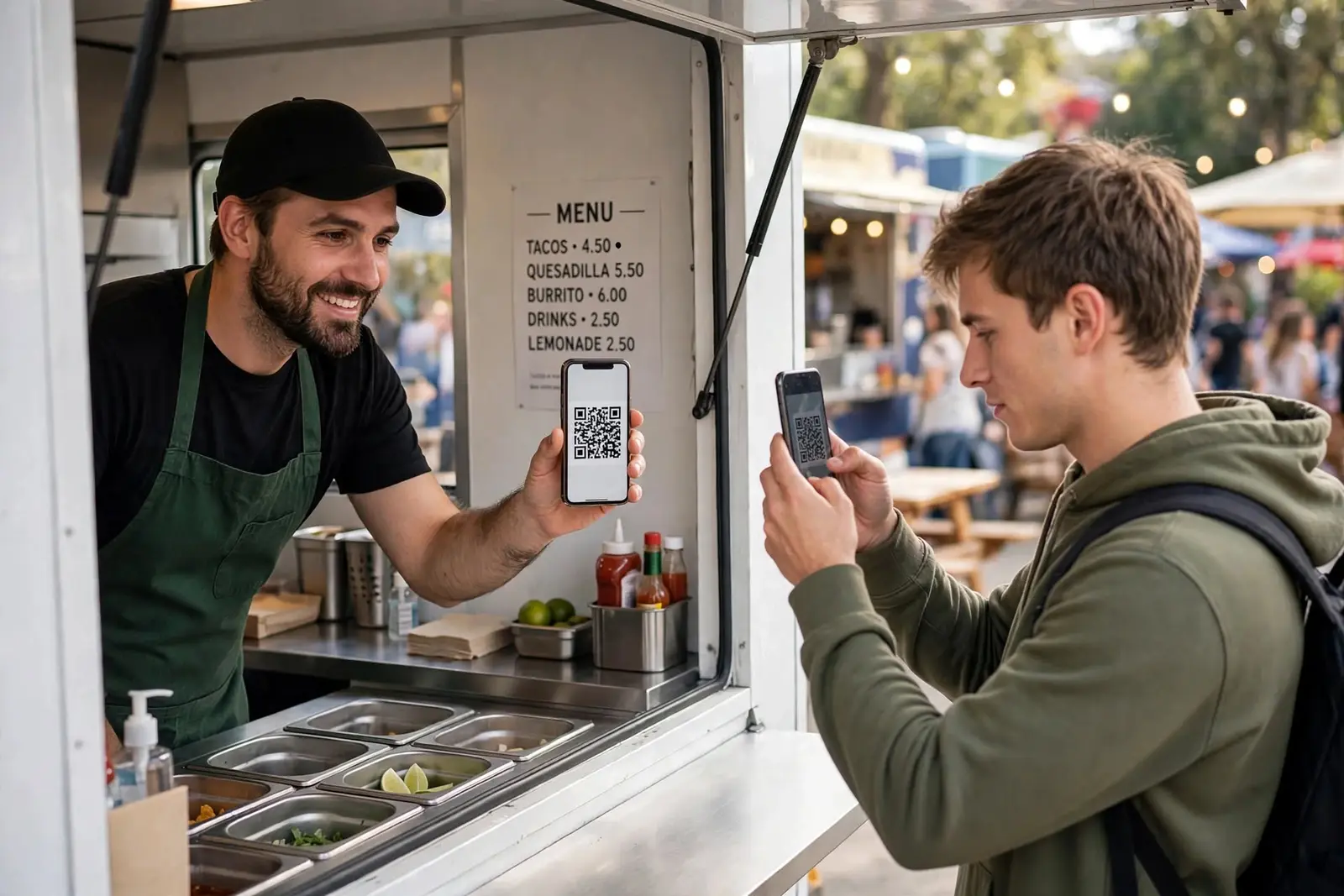
The customer scans the QR code
Their order opens on their phone, live. Nothing to download.
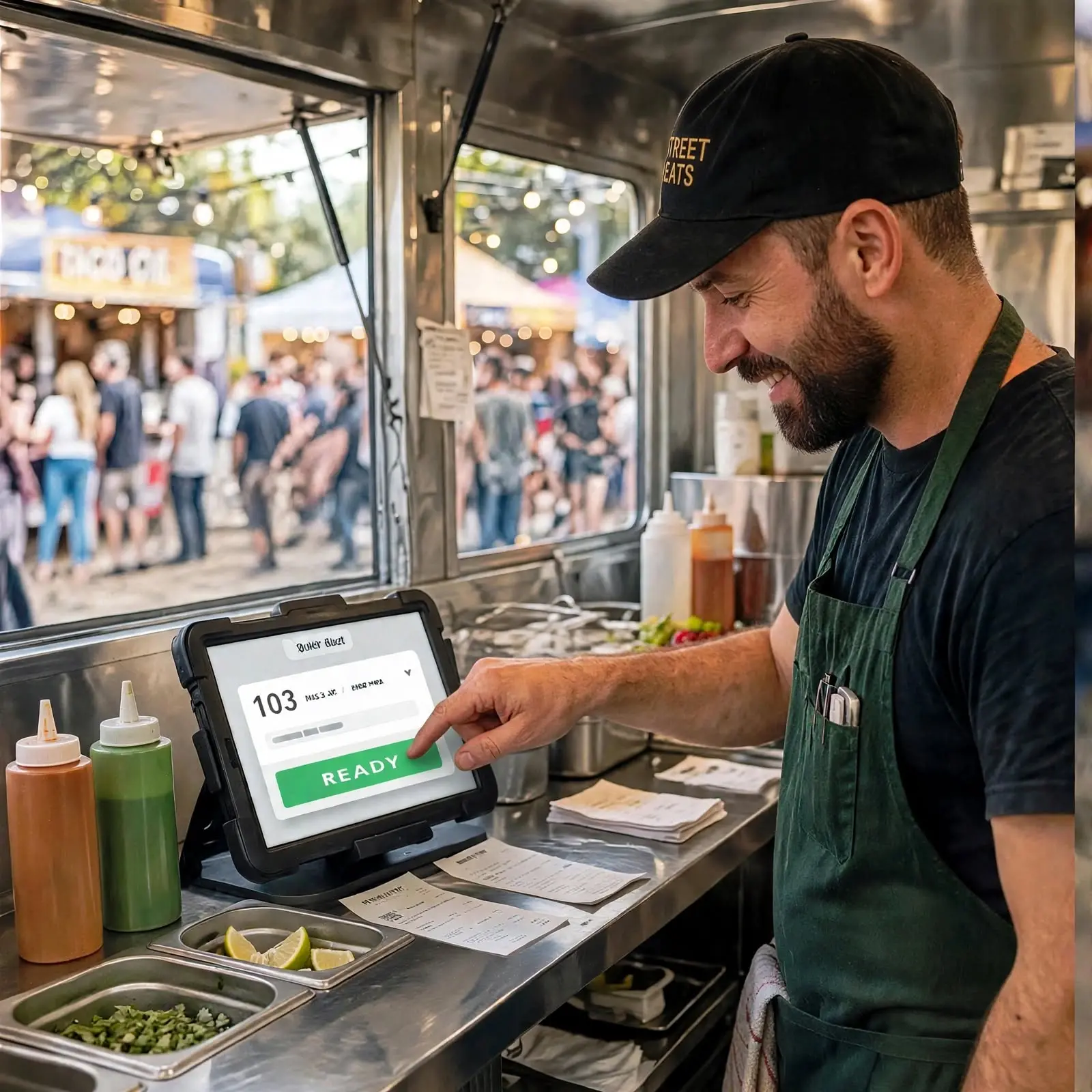
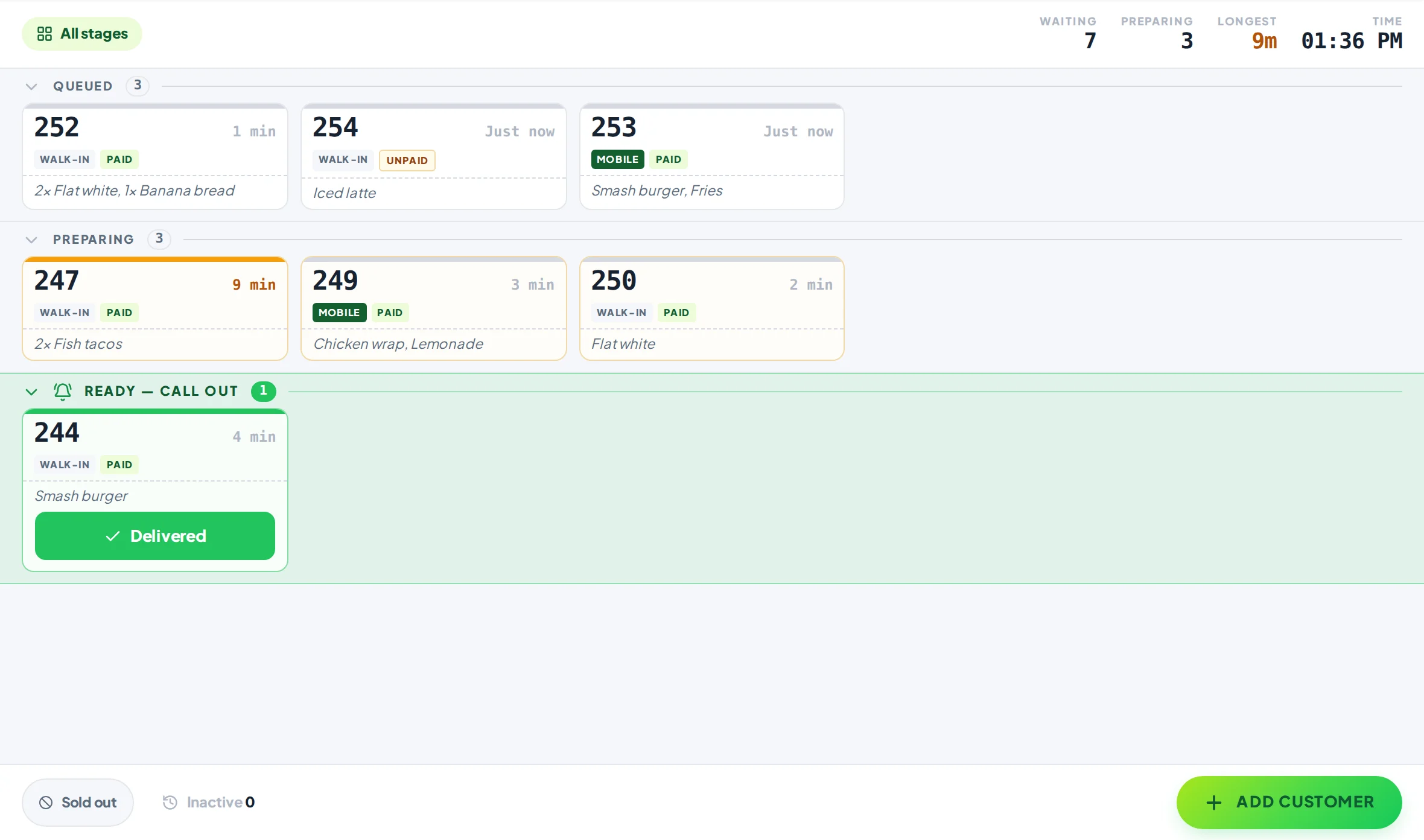
Your team moves it along
Preparing, then Ready, from any device behind the counter.
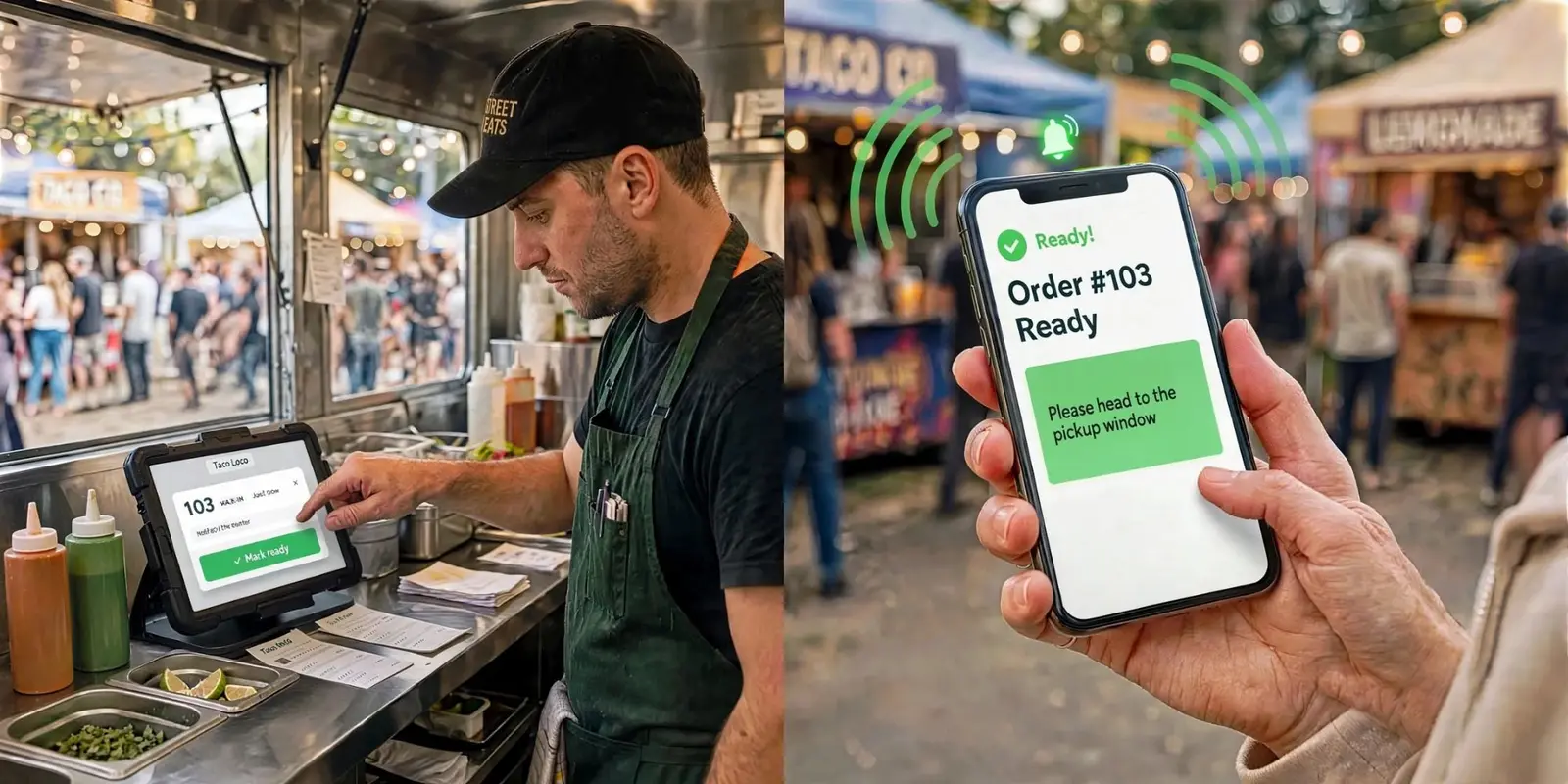
Ready calls the customer
Their phone plays a sound and tells them where to collect.
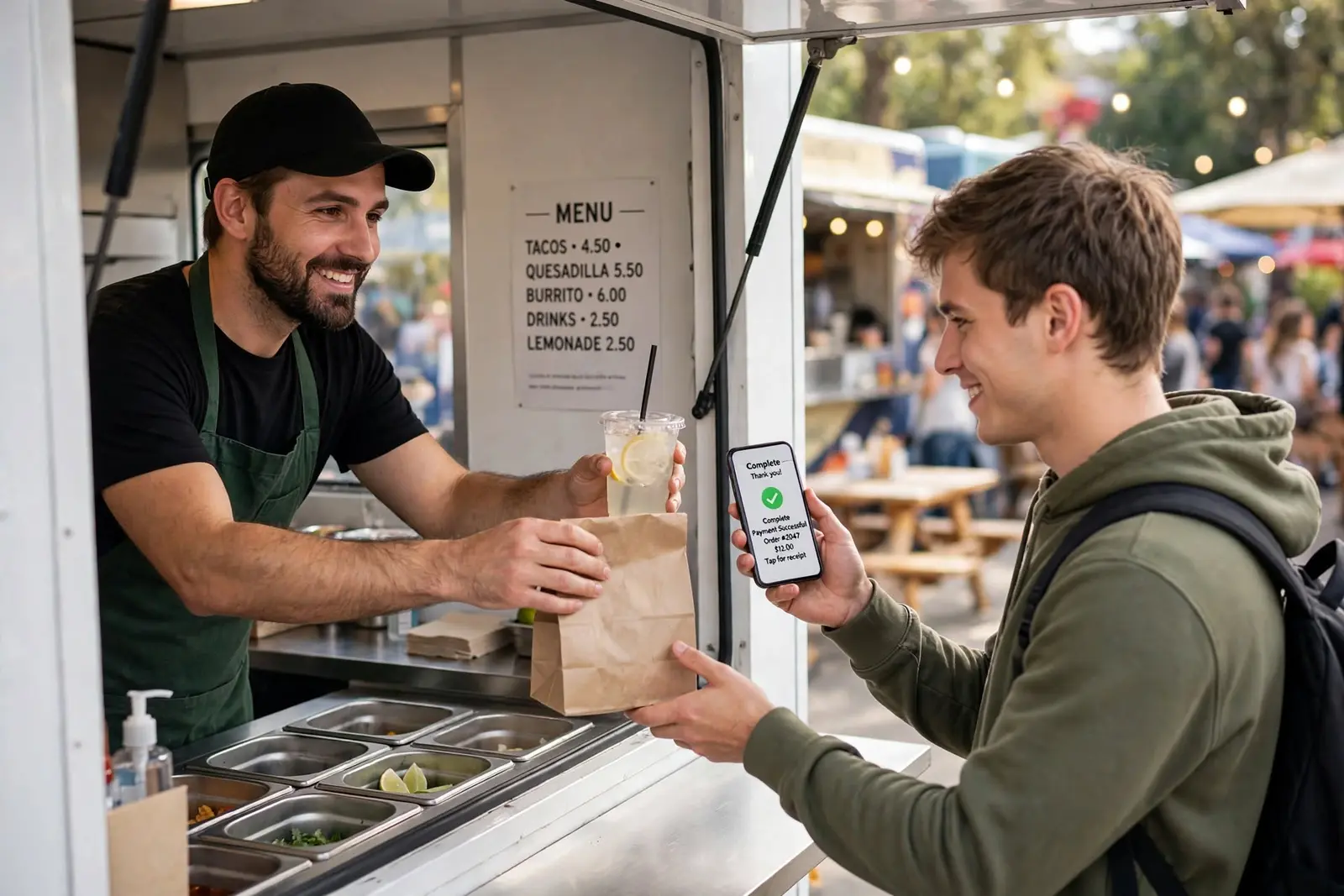
Hand it over, tap Complete
The ticket clears and the next customer is up.
Setup finder
How would Yernex fit the way you work now?
A few quick questions. You’ll get your day with Yernex step by step, what to switch on, and the plan that covers it.
Answer the questions and your workflow, the pieces to switch on and the plan that fits will appear here.
With Square
Ring it up on Square. The ticket makes itself.
Connect your Square account once. From then on, every paid sale becomes a Yernex ticket with the full order on it, numbered with Square’s own ticket number, so the kitchen stub, the Service Board and the customer’s phone all match.
- Connect Square from Settings and pick your location.
- Ring up a sale as usual. When the payment completes, the ticket appears on your Service Board.
- The customer scans the ticket’s QR code from your screen and follows their order.
- Refunded orders are marked on their ticket, so nobody makes food that has been paid back.
- Add QR codes so customers can order and pay from their phone, straight into the same queue.
Square integration and QR code ordering are on every plan, including Free.
Without Square
Any till, cash box or notepad. Add the ticket in two taps.
Yernex works alongside whatever you take payment with. Ring the sale up as you do now, then add a ticket in Yernex: it takes the next number of the day, and you write that number on the docket for the kitchen.
- Take the order and payment the way you do today.
- Tap Add Customer in Yernex. A name or note is optional.
- Write the number on the docket, or call it back to the kitchen.
- Show the customer the ticket’s QR code to scan.
- Move it to Ready when it’s done: their phone plays a sound and the Now Serving screen updates.
Works on every plan, including Free.
What you need
Nothing new to buy. Use what’s already in the shop.
Behind the counter
Any phone, tablet, laptop or desktop with a web browser runs the Service Board. Add more screens for the kitchen or the pickup shelf by pairing them with a code.
In your customers’ hands
Their own phone. They scan a QR code with the camera and their order opens in the browser. No app, no account, no personal details.
On the wall
Any smart TV, tablet or monitor with a web browser becomes your Now Serving screen. Open the Pickup Board page on it, then scan its code with your phone or type it into your dashboard.
FAQ
Questions, answered.
How does a queue management system work?
Each customer gets a numbered ticket when they order. Staff move the ticket through stages, like Preparing and Ready, and the system tells the customer when it is their turn. With Yernex, the ticket lives on the customer’s phone and the Now Serving screen shows the queue for everyone else.
How long does it take to set up?
Create an account, choose a preset for your kind of business or name your own stages, and add your first ticket. Most counters are running in a few minutes. Connecting Square takes a few more.
Do I need Square?
No. Without Square, you add each ticket in Yernex in a couple of taps. With Square connected, on any plan, paid orders become tickets on their own.
Can my kitchen and counter use separate screens?
Yes. Pair extra devices as service stations, each showing the view it needs. Every screen stays in step: if two people tap the same ticket, nobody moves it twice. Free includes one extra screen, Pro as many as you like.
How do customers know their order is ready?
Their phone plays a sound and shows where to collect, and their number moves to Ready on your Now Serving screen. If they tapped “Track My Order”, they also get a notification when they have switched to another app.
What does the customer need to do?
Scan the QR code on your screen with their phone camera. That’s it: no app, no sign-up.