A Now Serving display on any TV, in your colours, in a minute.
Turn the screen you already own into an order status board: Preparing and Ready numbers, updated the moment your team taps a ticket. Put today’s special beside them and the wait sells for you.
On Pro: $7 a month or $60 a year. No hardware to buy.
The counter at the rush
If they can’t see the queue, they’ll stand at your counter and ask.
A crowd at the pickup point slows everyone down: customers who have ordered block the ones who haven’t, and your team answers the same question all service. A screen that shows where every order is ends the asking.
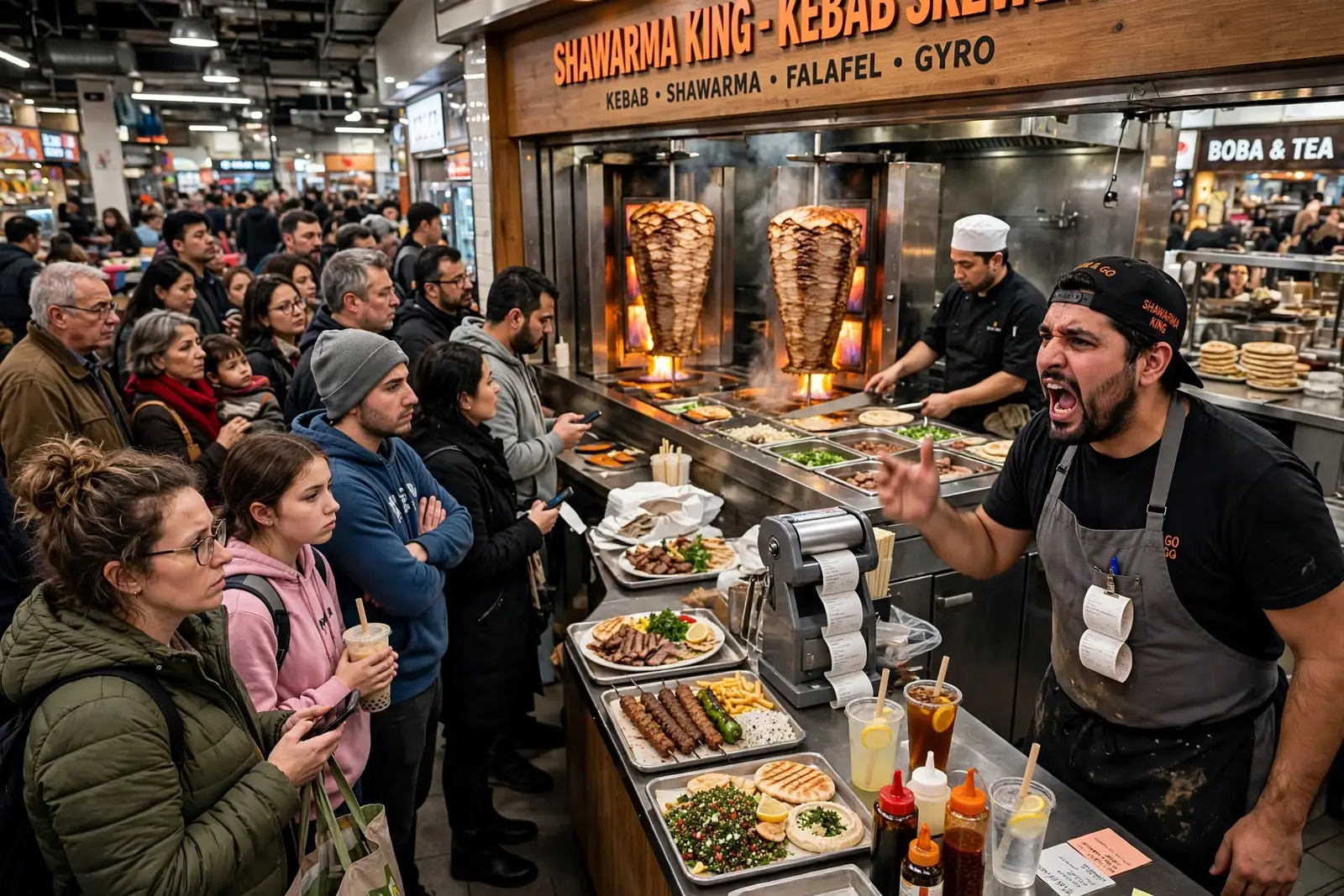
BeforeNames shouted over the noise, dockets piling up, and a crowd at the counter asking “is mine ready?”.
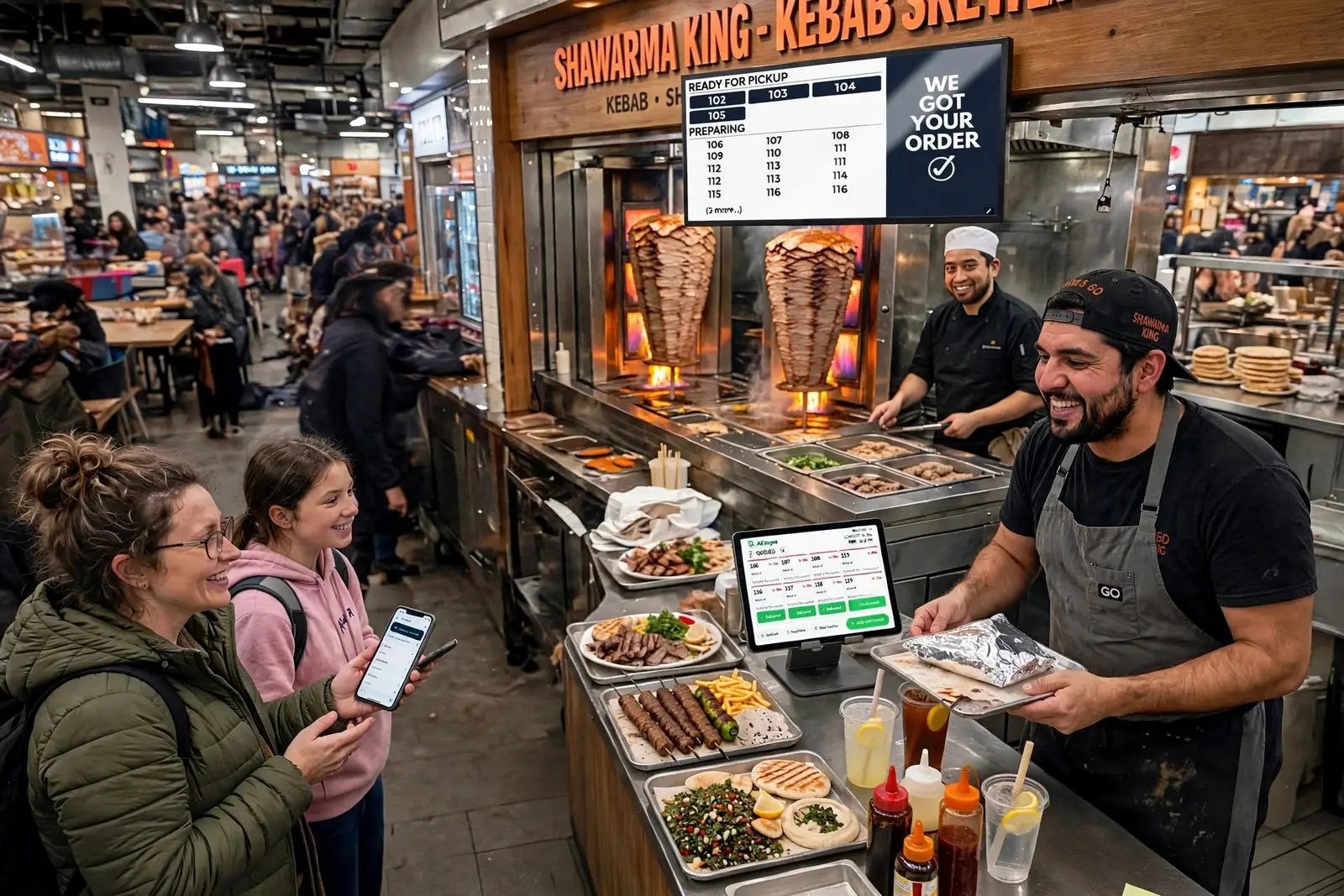
With YernexNumbers on the screen above the counter. Customers look up, not over your shoulder.
Calling out vs a Now Serving board
Everyone sees their number, without anyone raising their voice.
Calling out numbers compared with Yernex
Calling out numbers
Yernex
Who knows the order is ready
Whoever heard it
Everyone who looks up
Orders still being made
Invisible
Listed under Preparing
Updates
When someone has a free moment
The moment your team taps the ticket
Between calls
Silence
Your special, menu or socials beside the numbers
When an order is ready
Shout it and hope
The number moves to Ready, with an optional ready sound
Kit
A loud voice
Any TV, monitor or tablet with a web browser
The board’s sound is heard by whoever is near the screen. Pair it with mobile order tracking and each customer’s own phone plays a sound too, wherever they are.
How to set it up
From blank TV to Now Serving, without a cable or an app.
01
Open the board on the screen
On the TV, tablet or monitor’s web browser, go to yernex.com/pub. It shows a QR code and a short pairing code.
02
Scan it with your phone
Sign in, check the code matches and tap Pair Display. No phone handy? Generate a code in your dashboard and type it on the board instead.
03
Make it yours
In Devices, pick the colours of the board, the Ready and Preparing sections and the number tiles, rename the section headings and upload a banner or animated GIF.
04
Run service as usual
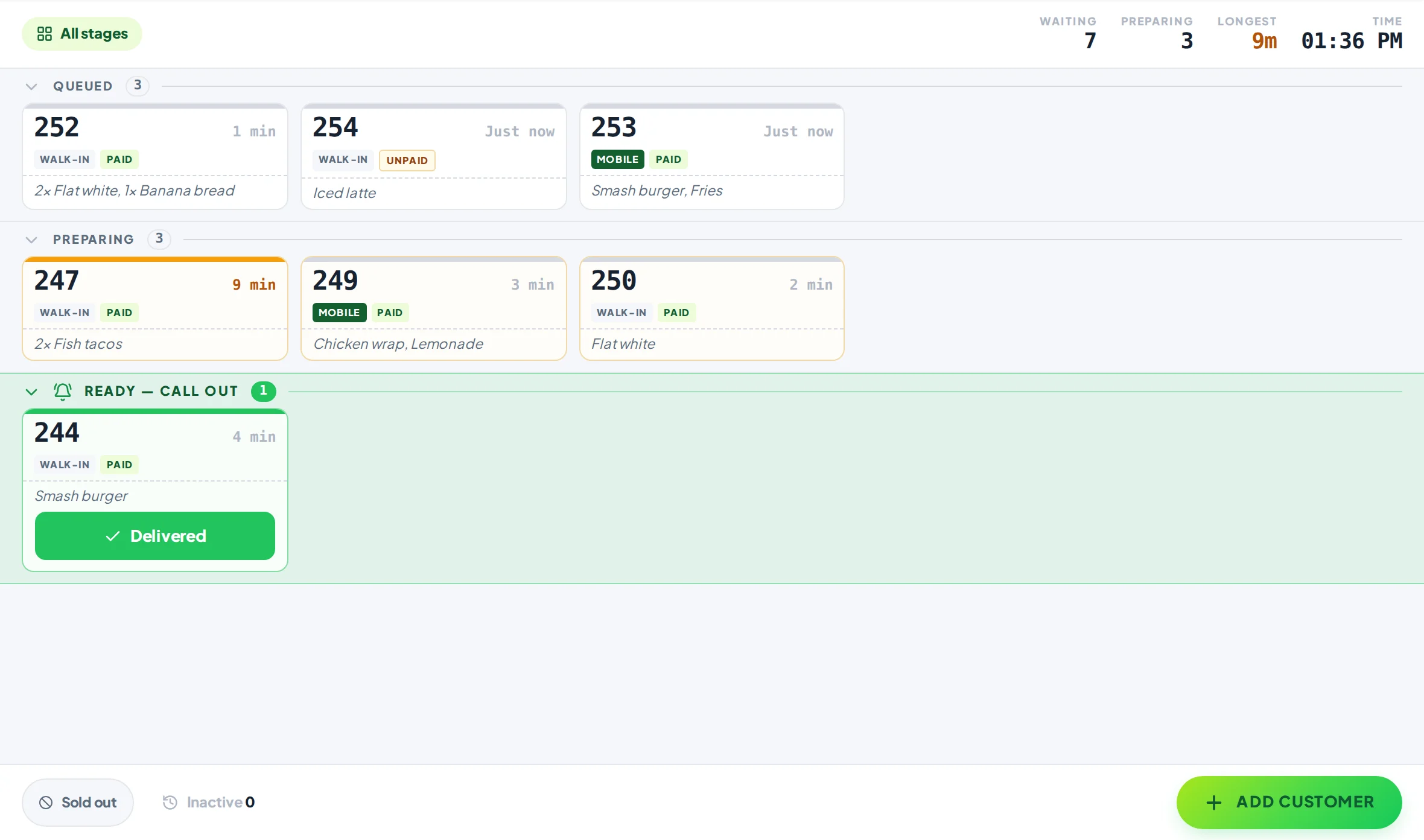
Tickets you move on the Service Board appear under Preparing, then Ready. Pair as many screens as you like.
What everyone sees
One queue, on the wall, the counter and their phone.
01On the wall
Your numbers, your colours, your special running beside them.
The board shows your shop name and a clock, with Ready numbers big enough to read from the back of the line. Add an image and it makes room for it.
Choose the background, section and tile colours to match your shop.
Rename “Ready for Pickup” and “Preparing” to whatever you call them.
Upload a banner or animated GIF: today’s special, your menu, your socials.
Turn on the ready sound and the screen plays it each time an order moves to Ready.
Unpair a screen from your dashboard at any time.
02Service Board
Tap a ticket here, it moves on every screen.
The Service Board drives the Now Serving board. Run it on the counter tablet, pair a second device in the kitchen, and every board updates within seconds.
Runs in the browser on any phone, tablet, laptop or desktop you already have.
Pair more devices by scanning a code: Free includes one extra screen, Pro as many as you like.
Every screen stays in step. If two people tap the same ticket, nobody moves it twice.
Each screen shows the view it needs, so the counter and the back room can each see their own part.
03On their phone
The board for the room, a buzzer for each customer.
Add mobile order tracking and each customer scans their ticket’s QR code. Their phone plays a sound when it’s ready, wherever they are.
QR code ordering, order tracking on the customer’s phone and “order ready” alerts. Up to 10 tickets in progress, no time limit. Customers pay a 10c convenience fee on each QR order.
Pro
$7 a month or $60 a year
Paid monthly or yearly. Adds the Now Serving screen in your colours, an Order again button, review and social buttons, and no limit on tickets or devices.
A screen that shows which order numbers are being prepared and which are ready to collect, so customers can see their turn without asking. It is also called an order status board or a queue display system.
What screen do I need for a Now Serving board?
Any smart TV, monitor or tablet with a web browser. A spare tablet in the window works as well as a TV above the counter.
How many boards can I have?
As many as you like on Pro. Each one pairs on its own and shows the same queue.
Can I show my menu or specials on it?
Yes. Upload a banner image or animated GIF and it runs beside the order numbers.
Does it show customers’ names?
Only if your team enters one. A ticket with a customer name shows the name; otherwise the board shows its order number.
Does the board make a sound?
It can. Turn on the ready sound in your dashboard and every paired screen plays it whenever an order moves to Ready, including one moved back from Complete. It is off until you turn it on, and the screen’s own volume sets how loud it is. Safari on iPad only plays sound once the screen has been touched.
What if the screen loses its connection?
It keeps its pairing and catches up when the connection returns. You don’t need to pair it again.